Genius Fax
- 4.9
- Rating
- 100.00K
- Installs
- Free
- Price

 Analysis by App-foxy
Sending a fax from a phone still sounds slightly strange until a client, clinic, government office, or supplier asks for one immediately. I tested Genius Fax with that situation in mind, and my overall impression is that it turns an awkward, occasional task into something I can handle without finding a fax machine. It is a business app from The Grizzly Labs, available for free, with optional in-app purchases ranging from $0.99 to $21.51 per item.
The important thing to understand before installing it is that this is not a general document editor or a replacement for every business communication tool. Its job is narrower and more useful: help me send fax documents from a mobile device. That focus makes the experience easier to understand, but it also means the app makes the most sense when faxing is an actual requirement rather than a habit I want to modernize.
It has been available since June 25, 2014, and its current version is 1.12.0. The app is rated for Everyone and requires Android 8.0 or later. On the store, it has an average rating of 4.9 from around 3,100 ratings, with more than 100,000 installs. Those figures suggest that it has found a clear audience among people who need a practical faxing shortcut rather than a large all-purpose office suite.
You May Also Like

 Blood Strike: 2.5 Anniversary
Blood Strike’s Loadouts Turn Every Drop Into a Tactical Gamble
A close look at Blood Strike’s custom loadouts: how fast access to signature weapons reshapes its battle royale rhythm, rewards preparation, and narrows the gap between fights.

 Pandora - Music & Podcasts
Pandora’s Music Is Easy to Start, but Harder to Recover
Pandora’s strength is its low-effort path from a seed to a station. Its weak spot is how much confidence it asks you to place in connection, setup, and quiet recovery.

 8 Ball Pool
8 Ball Pool Is Built on Rivalries, Rematches, and Routine
A close look at the rivalries, rematches, shared routines, and unanswered safety questions that turn a quick pool match into a persistent mobile community.

 Samsung Music
Samsung Music’s Quiet Strength Is Playing What You Already Own
Its reach comes less from spectacle than from dependable access to a personal library. That simplicity is both the app’s strongest retention engine and its ceiling.

 AccuWeather: Weather Radar
AccuWeather Review: A Quick, Clear Forecast for Everyday Decisions
For everyday plans, the best forecast is the one you can understand quickly. AccuWeather makes rain timing, radar, and local conditions easy to act on, with a few trade-offs.

 Hill Climb Racing
Why Hill Climb Racing Still Turns Crashes Into One More Run
A tiny car, a bumpy hill and one more upgrade: Hill Climb Racing keeps resurfacing because its simple chaos makes every near-miss feel personal.
More From Our News Desk



What to expect before sending anything
My first useful takeaway is that Genius Fax is best approached as a task-based tool. I would not install it expecting a workspace full of accounting, messaging, scanning, and file-management features. Instead, I would open it when I already have a document ready or when I need to prepare one for faxing.
That distinction matters because the usual alternative is often a physical fax machine at an office, a print-and-fax counter, or a desktop service that feels excessive for a single page. Those options can be inconvenient when I am away from work, dealing with a time-sensitive form, or working from a phone. The app’s value is not that faxing becomes exciting; it is that the hardware barrier largely disappears from the moment.
I also found it helpful to think about the cost model before starting. The app itself is free, while in-app purchases are available for individual items. In practical terms, this makes it suitable for occasional use without committing to a traditional machine or a larger office subscription. However, anyone who sends documents regularly should pay attention to the purchase flow and consider whether repeated one-off payments make sense for their routine.
That is one of the first trade-offs. A free installation is reassuring, but “free” does not mean every fax-related action is unlimited. I would keep the app installed for emergencies, then check the displayed purchase details at the point when I actually need to send something. This is more sensible than assuming that a free download automatically covers frequent business use.
The app is also a better fit for a person who already keeps documents on a phone. If my paperwork is stored in a cloud drive, email attachment, photo library, or another mobile file location, the transition is straightforward. If my entire process still depends on paper folders, I may need an extra step before Genius Fax can help: I must first create a usable digital document.
Preparing the document before opening the app
For a smooth first attempt, I would prepare the file before thinking about the recipient. A clean, upright document is more important than fancy formatting. I would check that every page is readable, that the edges are not cut off, and that handwritten details are dark enough to survive transmission.
This is a small but non-obvious point: faxing is not the same as casually sharing a photo. A picture that looks acceptable in a gallery can become difficult to read when converted for transmission. I would avoid sending a screenshot with unnecessary menus around it, and I would crop a photographed page tightly. If the document contains several pages, I would also verify their order before starting rather than trying to correct the sequence under pressure.
For forms, I would save a final copy with a clear filename before selecting it. That makes it easier to distinguish the completed version from a blank template or an earlier draft. It also reduces the chance of sending a document that still has missing fields, an old date, or an incorrect attachment.
Setting up the first fax without guesswork
The first setup feels less intimidating when I divide it into two separate jobs: choosing the document and entering the destination. Trying to do both while searching through a crowded phone can lead to mistakes, especially if the recipient has supplied a fax number with extensions, spaces, or regional formatting.
I would begin with the document and inspect the preview carefully. The preview is not just a confirmation screen to tap through. It is the last practical opportunity to catch a rotated page, a missing signature, a blank second page, or a crop that removes important text. This review step is especially valuable when the source is a camera image rather than a document created on the phone.
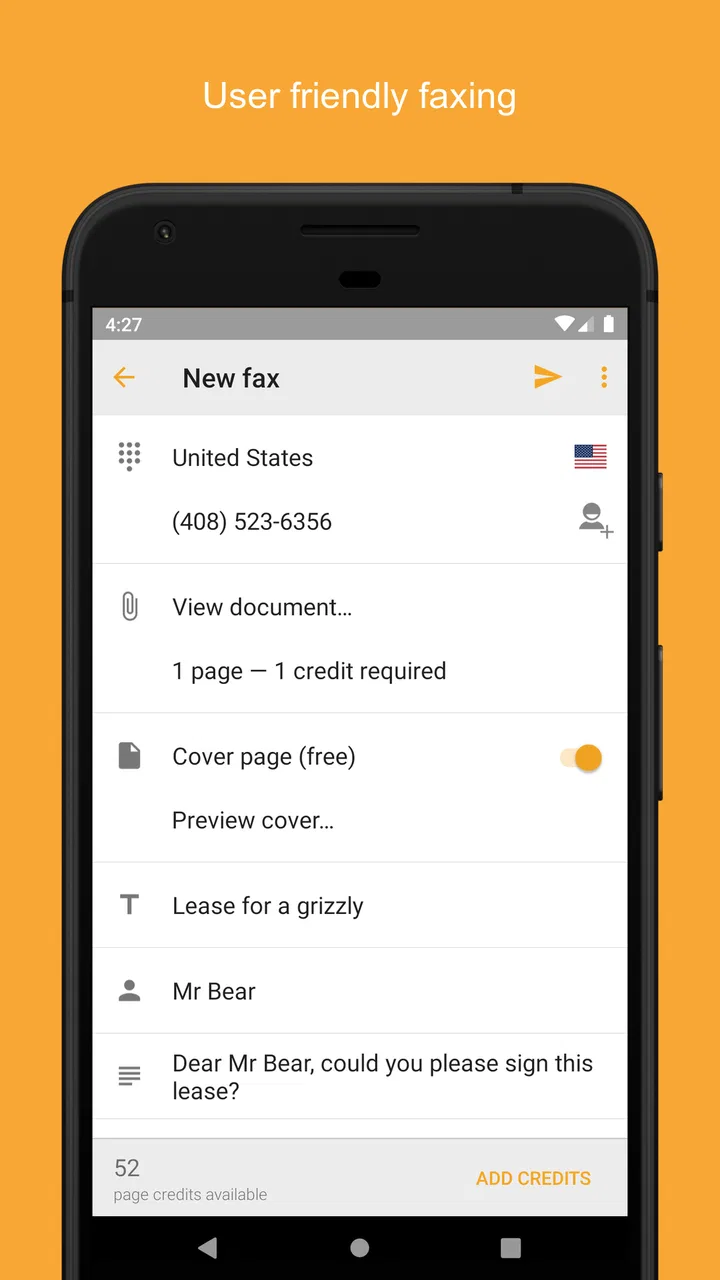
Next, I would enter the recipient’s fax number exactly as requested. I would compare it against the original email or form instead of relying on a number stored in memory. A fax sent to the wrong destination may still look successful from the sender’s side, so careful entry is more valuable than speed.
If the destination uses an extension or special dialing instruction, I would follow the recipient’s directions rather than guessing how to format it. This is one area where a mobile fax app cannot remove the need for accurate information. The app can simplify the sending equipment, but it cannot decide which office number is correct.
Before confirming a purchase or transmission, I would pause on the final details. I want to know which document is selected, where it is going, and what the app is asking me to approve. That short pause is a good habit for any paid communication action, especially when I am sending business or medical paperwork.
The first successful action: send a document and verify the result
For a first meaningful test, I would use a harmless document rather than an urgent original. A one-page sample or a non-sensitive form lets me learn the flow without risking private information or a deadline. Once the document is selected and the number is checked, I would send it and remain in the app long enough to understand the status shown afterward.
My definition of success would not be merely seeing a button react. I would look for the app’s indication that the transmission has completed, then contact the recipient through the normal channel if the document is important. A confirmation inside the sending app is useful, but the recipient’s acknowledgment is the practical endpoint when the fax affects a contract, application, or appointment.
This workflow is particularly useful in a realistic everyday situation. Imagine that I am away from my office when a clinic requests a signed authorization before the end of the day. I can sign the document, scan or photograph it clearly, review the pages, enter the clinic’s fax number, and send it from my phone instead of driving back to a workplace or searching for a public fax service. The benefit is not just convenience; it is preserving the timing of the task.
There is a second useful scenario for small businesses. A contractor may receive a purchase order as an email attachment and need to return a signed copy to a supplier that still accepts documents by fax. I can download the attachment, sign it, save the completed version, and use the app as the final delivery step. That keeps the workflow on the phone, although I would still retain the signed file separately for my records.
Keeping that separate copy is important. I would not treat a faxing app as my complete document archive. After sending, I would store the final document in the location I normally use for business records. That way, the app handles transmission while my own filing system handles retention, later reference, and backup.
Where first-time users may become confused
The biggest likely confusion is the difference between preparing a document and sending it. A phone may show several ways to open a file, but not every option represents the same kind of source. A camera image, a downloaded PDF, and a document attached to an email can each require slightly different handling before they are ready for faxing.
I would also avoid assuming that a document preview proves the recipient has received a readable page. Previewing confirms what I am about to submit, not necessarily how the other side will interpret a poor photograph or faint handwriting. If the page is important, I would zoom in on small text and signatures before sending.
Another point worth clarifying is the role of the app compared with email. Email is usually better when the recipient accepts it and when I need a quick conversation around the file. Fax remains relevant when an organization specifically requests it or when its internal process is built around fax numbers. Genius Fax does not make email obsolete; it gives me a practical route when email is not the accepted channel.
The same comparison applies to scanning apps. A scanning app may be the better tool if my main need is creating polished, multi-page digital documents with careful image cleanup and organization. Genius Fax becomes more compelling when the immediate goal is to transmit that document by fax. In some cases, I would use both: one tool to create a clean scan and this app to deliver it.
I would also be cautious with sensitive paperwork. A faxing workflow can be appropriate for professional documents, but I would still verify the recipient number, avoid sending unnecessary pages, and confirm who is waiting at the other end. The app reduces equipment requirements; it does not remove ordinary privacy responsibilities.
For people asking whether they need a physical fax machine after installing it, my answer is usually no for occasional mobile sending. If an office receives faxes continuously, needs to print incoming pages automatically, or has several employees sharing a formal fax process, a dedicated office solution may remain more suitable. This app is strongest as a personal, on-demand sending tool.
Building a reliable routine after the first send
Once the first transmission is complete, I would create a simple repeatable routine. First, name or save the final document clearly. Second, verify the number from the original request. Third, inspect every page. Fourth, review the purchase or sending confirmation. Finally, keep the document and any useful confirmation in my normal records.
That routine sounds basic, but it addresses the mistakes that are most expensive in practice. The app can make the mechanical part quick, while the user remains responsible for sending the right version to the right place. I would rather spend an extra minute checking than discover later that a blank template or incomplete scan was transmitted.
A useful advanced habit is to prepare a small “ready to send” folder on the phone. I would only place final documents there, not drafts. This reduces browsing time in Genius Fax and makes it less likely that I will select a similarly named file. After the task, I would move or copy the document into its proper long-term folder so the temporary area does not become confusing.
Another practical tip is to photograph pages in consistent lighting if I am working from paper. I would place the sheet flat, keep the phone directly above it, and check the corners. Shadows and angled pages are easy to overlook on a small screen, yet they can make a faxed form look unprofessional or hide a number that the recipient needs.
I would also decide in advance how I will handle a recipient who says the fax did not arrive. Rather than immediately sending the same file again, I would confirm the number, inspect the page quality, and check the app’s status. Resending blindly can create duplicate paperwork. A quick call or email to the recipient can establish whether the issue was a wrong number, a missing page, or a readability problem.
The version installed on my device is 1.12.0, so I would keep the app updated through the normal store process when updates are available. That is not a reason to delay an urgent task, but it is a sensible maintenance habit for a business utility. I would also make sure my phone has enough battery and a stable connection before starting a time-sensitive fax, since the app is still dependent on the phone environment around it.
Who should use it, and who should choose something else?
I would recommend Genius Fax to freelancers, small-business owners, students handling official paperwork, and anyone who sends a fax only when an organization demands it. It is especially appealing to people who travel, work from home, or do not want to maintain a physical fax machine for rare requests.
I would be less enthusiastic for a large office that needs shared access, incoming fax management, centralized records, or a formal approval chain. In that setting, a business fax platform or office machine may offer a better operational fit, even if it is less convenient for one person. The right choice depends on whether the problem is occasional sending or ongoing document traffic.
I would also skip it as my primary solution if I mostly need document scanning, editing, electronic signatures, or email collaboration. Those tasks may require other dedicated tools. Genius Fax is valuable precisely because it addresses a specific final step, not because it replaces every other part of a paperwork process.
The app’s Everyone age rating makes it approachable for a broad audience, but that should not be confused with suitability for every document workflow. A child can technically encounter an accessible interface, yet the meaningful users are people managing forms, records, and business communication. The rating describes accessibility, while the use case is clearly practical and administrative.
My next-step recommendation
My advice is to install it before the emergency, not during one. Open it, identify how you will select a document, and become familiar with the review screen using a non-sensitive file. You do not need to build a complicated system; you simply want to remove uncertainty before a clinic, customer, or supplier is waiting.
When the real request arrives, start with the cleanest available file, verify the fax number twice, and inspect the preview page by page. Treat any payment prompt as a decision point rather than tapping automatically. If the task becomes frequent, compare the cost and workflow with a dedicated business fax service. If it remains occasional, the free installation and on-demand approach are likely to be more convenient than owning equipment.
After using it, I would keep the final document in my own records and ask the recipient to confirm receipt when the matter is important. That extra confirmation turns a simple send action into a dependable business process. It also makes it easier to troubleshoot if the recipient reports a problem later.
In my experience, Genius Fax succeeds because it respects the narrow reason people still need faxing: an organization requires it, and I need a way to comply without hunting for a machine. The app is not the right answer for every office or every document task, and its optional purchases deserve attention. But for a first-time user who wants a reassuring path from a phone-held document to a completed fax, it offers a focused and practical solution.
FAQs for Genius Fax
01What is Genius Fax and what can I use it for?
Genius Fax is a mobile faxing app that lets you send documents from an Android or iOS device without using a traditional fax machine. You can select files from your phone, cloud storage, or other supported sources, enter the recipient’s fax number, and transmit the document digitally. It is useful for occasional personal, business, medical, legal, or administrative faxing when you need a quick alternative to office equipment.
02How much does it cost to send a fax with Genius Fax?
Genius Fax generally uses a pay-as-you-go credit system rather than requiring every user to maintain a long-term subscription. The price can vary depending on the destination, number of pages, and any applicable in-app fees. Before confirming a fax, the app normally shows the expected cost or required credits. It is worth checking the current pricing in the app store listing and purchase screen before sending important documents.
03What file types and documents are supported by Genius Fax?
The app is designed to work with common document formats, including PDF files and image files such as JPG or PNG, although exact support can depend on the current app version and operating system. You can usually import documents from your device, cloud services, email, or another compatible application. Before sending, review the document preview carefully to ensure every page is readable, correctly ordered, and properly oriented.
04Can I receive faxes with Genius Fax, or does it only send them?
Genius Fax is primarily known as an on-demand fax-sending service, making it convenient for transmitting documents from a smartphone or tablet. Fax reception features, if available, may depend on the product version, account type, country, or an additional number or service option. Users who need to receive faxes regularly should verify the current feature list before downloading, because sending and receiving may not be included in the same plan.
05Is Genius Fax secure enough for confidential documents?
Genius Fax can be convenient for sending sensitive paperwork, but users should still review its current privacy policy, data-handling practices, and security information before transmitting confidential material. Check the recipient’s fax number carefully, use a secure internet connection, and avoid sending unnecessary personal information. For medical, legal, financial, or business documents, confirm that the service meets any privacy or compliance requirements that apply to your situation.
Pros
- Send and receive faxes directly from your smartphone.
- Supports documents from cloud storage and email attachments.
- Includes a built-in scanner for capturing paper documents.
- Provides fax status updates and delivery confirmations.
- Useful for occasional faxing without owning a physical fax machine.
Cons
- Fax credits can become expensive for frequent or lengthy transmissions.
- Requires an internet connection to send or receive faxes.
- Incoming faxes may require an active subscription or paid plan.
- Document formatting can vary depending on the original file.
- Not ideal for users who need advanced business fax administration tools.

Genius Fax
Gallery